Featured image of post Hugo教程系列二 主题装饰

Hugo教程系列二 主题装饰

站点设置

以下更改全部用Visual Studio Code,一般情况下绝大部分站点设置,都是通过更改config.yaml文件其路径为(D:\mywebsite\myblog\config.yaml);主题官方配置文档地址:https://stack.jimmycai.com/

添加web图标(favicon.io)

选定的图片存放路径是(D:\mywebsite\myblog\static\img)在img文件夹里放入你图片) 设置你的config.yaml文件,找到下面的代码更改: Alt text

1
2
3
4
5
6
params:
    mainSections:
        - post
    featuredImageField: image
    rssFullContent: true
    favicon: /img/me-192x192.png   #一定前面加/,第二个/后是图片名字加后缀。

添加评论系统

disqus注册账号,跟着提示走。在config.yaml文件,找到下面的代码更改:

 1
 2
 3
 4
 5
 6
 7
 8
 9
10
11
12
disqusShortname: aabbxx  #注册disq的名字,这行和下面不在一处

comments:
        enabled: true
        provider: disqus

        disqusjs:
            shortname: aabbxx
            apiUrl:
            apiKey:
            admin:
            adminLabel:

去掉主页右下角标签云

1
2
3
#            - type: tag-cloud   #在前面加#注释掉或直接删
#             params:            #在前面加#注释掉或直接删
#                  limit: 10     #在前面加#注释掉或直接删

加top向上返回按键

修改D:\mywebsite\myblog\themes\hugo-theme-stack\layouts/partials/footer/custom.html的custom.html文件夹(空一行加入下面代码)

  1
  2
  3
  4
  5
  6
  7
  8
  9
 10
 11
 12
 13
 14
 15
 16
 17
 18
 19
 20
 21
 22
 23
 24
 25
 26
 27
 28
 29
 30
 31
 32
 33
 34
 35
 36
 37
 38
 39
 40
 41
 42
 43
 44
 45
 46
 47
 48
 49
 50
 51
 52
 53
 54
 55
 56
 57
 58
 59
 60
 61
 62
 63
 64
 65
 66
 67
 68
 69
 70
 71
 72
 73
 74
 75
 76
 77
 78
 79
 80
 81
 82
 83
 84
 85
 86
 87
 88
 89
 90
 91
 92
 93
 94
 95
 96
 97
 98
 99
100
101
102
103
104
105
106
<!-- /layouts/partials/footer/custom.html-->

<!--返回顶部按钮 -->
<a href="#" id="back-to-top" title="返回顶部"></a>

<!--返回顶部CSS -->
<style>
  #back-to-top {
    display: none;
    position: fixed;
    bottom: 20px;
    right: 55px;
    width: 55px;
    height: 55px;
    border-radius: 7px;
    background-color: rgba(64, 158, 255, 0.5);
    box-shadow: var(--shadow-l2);
    font-size: 30px;
    text-align: center;
    line-height: 50px;
    cursor: pointer;
  }

  #back-to-top:before {
    content: ' ';
    display: inline-block;
    position: relative;
    top: 0;
    transform: rotate(135deg);
    height: 10px;
    width: 10px;
    border-width: 0 0 2px 2px;
    border-color: var(--back-to-top-color);
    border-style: solid;
  }

  #back-to-top:hover:before {
    border-color: #2674e0;
  }

  /* 在屏幕宽度小于 768 像素时,钮位置调整 */
  @media screen and (max-width: 768px) {
    #back-to-top {
      bottom: 20px;
      right: 20px;
      width: 40px;
      height: 40px;
      font-size: 10px;
    }
  }

  /* 在屏幕宽度大于等于 1024 像素时,按钮位置调整 */
  @media screen and (min-width: 1024px) {
    #back-to-top {
      bottom: 20px;
      right: 40px;
    }
  }

  /* 在屏幕宽度大于等于 1280 像素时,按钮位置调整 */
  @media screen and (min-width: 1280px) {
    #back-to-top {
      bottom: 20px;
      right: 55px;
    }
  }

  /* 目录显示时,隐藏按钮 */
  @media screen and (min-width: 1536px) {
    #back-to-top {
      visibility: hidden;
    }
  }
</style>

<!--返回顶部JS -->
<script>
  function backToTop() {
    document.documentElement.scrollIntoView({
      behavior: 'smooth',
    })
  }

  window.onload = function () {
    let scrollTop =
      this.document.documentElement.scrollTop || this.document.body.scrollTop
    let totopBtn = this.document.getElementById('back-to-top')
    if (scrollTop > 0) {
      totopBtn.style.display = 'inline'
    } else {
      totopBtn.style.display = 'none'
    }
  }

  window.onscroll = function () {
    let scrollTop =
      this.document.documentElement.scrollTop || this.document.body.scrollTop
    let totopBtn = this.document.getElementById('back-to-top')
    if (scrollTop < 200) {
      totopBtn.style.display = 'none'
    } else {
      totopBtn.style.display = 'inline'
      totopBtn.addEventListener('click', backToTop, false)
    }
  }
</script>

背景加上随点击随机变化的彩带,

位置同上条修改D:\mywebsite\myblog\themes\hugo-theme-stack\layouts/partials/footer/custom.html的custom.html文件夹,

在上面那一大段代码后空一行加入下面代码:

 1
 2
 3
 4
 5
 6
 7
 8
 9
10
<!-- layouts/partials/footer/custom.html -->
<script>
    src="https://cdn.jsdelivr.net/gh/zhixuan2333/gh-blog@v0.1.0/js/ribbon.min.js"
    integrity="sha384-UEK8ZiP3VgFNP8KnKMKDmd4pAUAOJ59Y2Jo3ED2Z5qKQf6HLHovMxq7Beb9CLPUe"
    crossorigin="anonymous"
    size="300"    #可修改为260
    alpha="0.6"   #0.3
    zindex="-1"
    defer
</script>

同样的实现彩带的另外一种方法

就是用全代码的方法,那就不要添加上面的代码,而是是加入下面代码:

 1
 2
 3
 4
 5
 6
 7
 8
 9
10
11
12
13
14
15
16
17
18
19
20
21
22
23
24
25
26
27
28
29
30
31
32
33
34
35
36
37
38
39
40
41
42
43
44
45
46
47
48
49
50
51
52
53
54
55
56
57
58
59
60
61
62
63
64
65
66
67
68
69
70
71
<!-- layouts/partials/footer/custom.html -->
<script>
/**
 * Copyright (c) 2016 hustcc
 * License: MIT
 * Version: v1.0.1
 * GitHub: https://github.com/hustcc/ribbon.js
**/
/*jshint -W030 */
! function() {
  function attr(node, attr, default_value) {
    return Number(node.getAttribute(attr)) || default_value;
  }

  // get user config
  var scripts = document.getElementsByTagName('script'),
    script = scripts[scripts.length - 1]; // 当前加载的script
  config = {
    z: attr(script, "zIndex", -1), // z-index
    a: attr(script, "alpha", 0.3), // alpha
    s: attr(script, "size", 290), // size
  };

  var canvas = document.createElement('canvas'),
    g2d = canvas.getContext('2d'),
    pr = window.devicePixelRatio || 1,
    width = window.innerWidth,
    height = window.innerHeight,
    f = config.s,
    q, t,
    m = Math,
    r = 0,
    pi = m.PI*2,
    cos = m.cos,
    random = m.random;
  canvas.width = width * pr;
  canvas.height = height * pr;
  g2d.scale(pr, pr);
  g2d.globalAlpha = config.a;
  canvas.style.cssText = 'opacity: ' + config.a + ';position:fixed;top:0;left:0;z-index: ' + config.z + ';width:100%;height:100%;pointer-events:none;';
  // create canvas
  document.getElementsByTagName('body')[0].appendChild(canvas);

  function redraw() {
    g2d.clearRect(0, 0, width, height);
    q = [{x: 0, y: height * 0.7 + f}, {x: 0, y: height * 0.7 - f}];
    while(q[1].x < width + f) draw(q[0], q[1]);
  }
  function draw(i, j) {
    g2d.beginPath();
    g2d.moveTo(i.x, i.y);
    g2d.lineTo(j.x, j.y);
    var k = j.x + (random()*2-0.25)*f, n = line(j.y);
    g2d.lineTo(k, n);
    g2d.closePath();
    r -= pi / -50;
    g2d.fillStyle = '#'+(cos(r)*127+128<<16 | cos(r+pi/3)*127+128<<8 | cos(r+pi/3*2)*127+128).toString(16);
    g2d.fill();
    q[0] = q[1];
    q[1] = {x: k, y: n};
  }
  function line(p){
    t = p + (random() * 2 - 1.1) * f;
    return (t > height || t < 0) ? line(p) : t;
  }

  document.onclick = redraw;
  document.ontouchstart = redraw;
  redraw();
}();
</script>

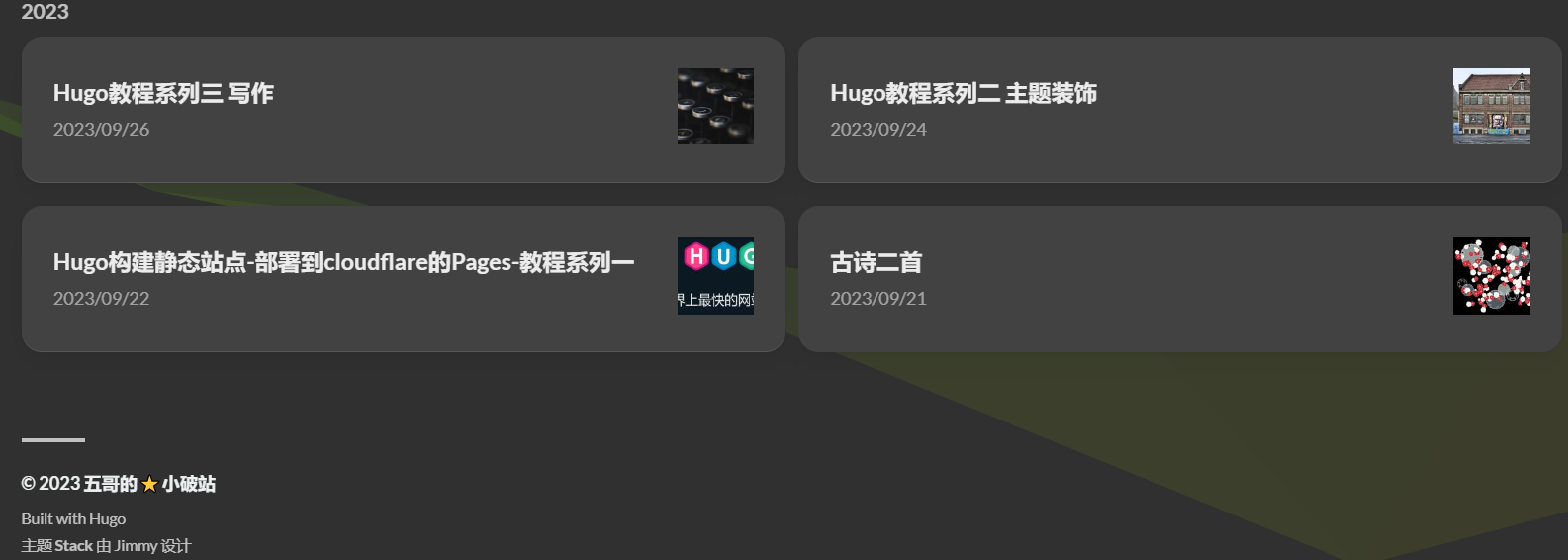
修改档案归档的样式为双栏排列

Alt text 修改路径(\themes\hugo-theme-stack\assets\scss\custom.scss)加上下列代码:

 1
 2
 3
 4
 5
 6
 7
 8
 9
10
11
12
13
14
15
16
17
18
19
//  ~\assets\scss\custom.scss
//归档页面双栏
@media (min-width: 1024px) {
  .article-list--compact {
    display: grid;
    grid-template-columns: 1fr 1fr;
    background: none;
    box-shadow: none;
    gap: 1rem;

    article {
      background: var(--card-background);
      border: none;
      box-shadow: var(--shadow-l2);
      margin-bottom: 8px;
      border-radius: 16px;
    }
  }
}

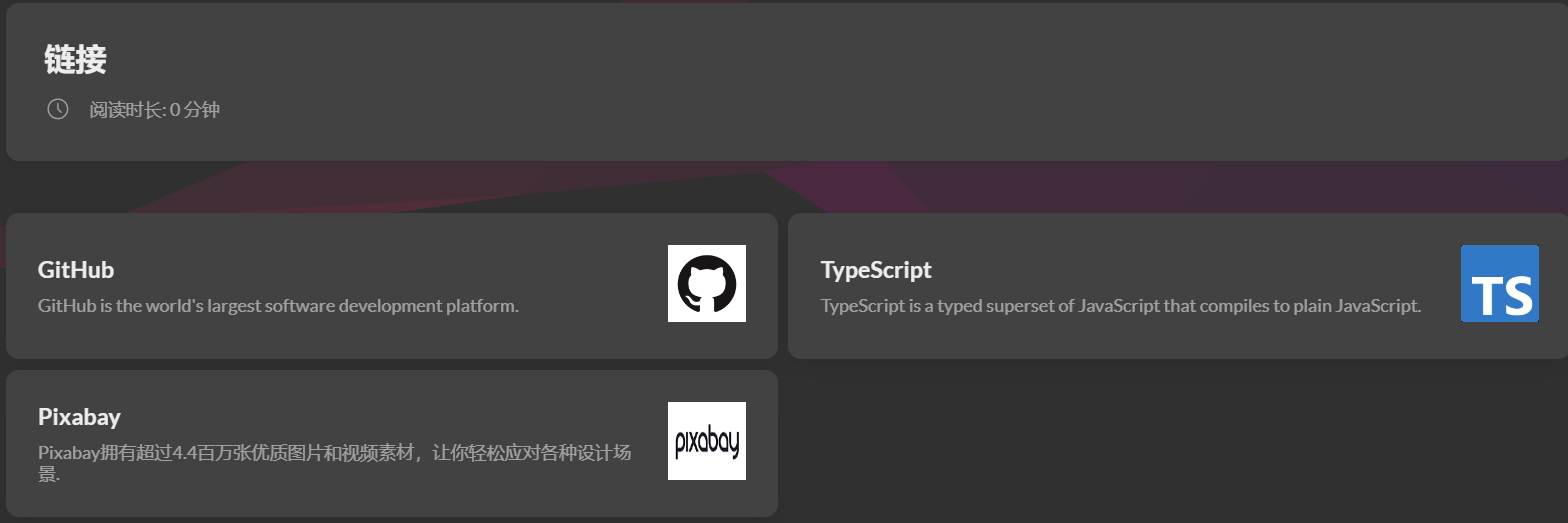
修改链接的样式为双栏或三栏排列

修改路径(\themes\hugo-theme-stack\assets\scss\custom.scss)加上下列代码:

双栏:

 1
 2
 3
 4
 5
 6
 7
 8
 9
10
11
12
13
14
15
16
17
18
19
20
21
//assets/scss/custom.scss
///友情链接双栏 
@media (min-width: 1024px) {
    .article-list--compact.links {
        display: grid;
        grid-template-columns: 1fr 1fr;
        background: none;
        box-shadow: none;
        
        article {
            background: var(--card-background);
            border: none;
            box-shadow: var(--shadow-l2);
            margin-bottom: 8px;
            border-radius: 10px;
            &:nth-child(odd) {
                margin-right: 8px;
            }
        }
    }
}

三栏:

 1
 2
 3
 4
 5
 6
 7
 8
 9
10
11
12
13
14
15
16
17
18
19
20
21
22
23
//  ~\assets\scss\custom.scss
//链接三栏 
@media (min-width: 1024px) {
  .article-list--compact.links {
    display: grid;
    grid-template-columns: 1fr 1fr 1fr; //三个1fr即为三栏,两个1fr则为双栏,以此类推.
    background: none;
    box-shadow: none;
    gap: 1rem;

    article {
      background: var(--card-background);
      border: none;
      box-shadow: var(--shadow-l2);
      margin-bottom: 8px;
      border-radius: var(--card-border-radius);

      &:nth-child(odd) {
        margin-right: 8px;
      }
    }
  }
}

配置头向下的个人社交展示信息

需要修改config.yaml的menu:下内容

 1
 2
 3
 4
 5
 6
 7
 8
 9
10
11
12
13
14
15
16
17
18
19
20
21
22
23
24
25
26
27
28
29
30
31
32
33
34
### Custom menu
### See https://docs.stack.jimmycai.com/configuration/custom-menu.html
### To remove about, archive and search page menu item, remove `menu` field from their FrontMatter
menu:
    main: []

    social:
        - identifier: github      #与svg文件名相同
          name: GitHub
          url: https://github.com
          weight: 1               #排序
          params:
              icon: brand-github  #svg图标的名称,不要后缀(.svg文件目录\assets\icons)

        - identifier: twitter
          name: Twitter
          url: https://twitter.com
          weight: 2
          params:
              icon: brand-twitter

        - identifier: rss
          name: RSS
          url: https://你的域名/index.xml
          weight: 3
          params:
              icon: rss 
              
        - identifier: Email
          name: Email
          url: mailto:你的邮箱
          weight: 4   
          params:
              icon: Email

获得.SVG文件

因为 Stack 主题内置的小图标有限,更多的 SVG 图标可去 TablerIcons 获取。

进入页面以后,默认设置不需调整,在搜索栏输入你想要的图标名称(英文),然后选一个喜欢的图标,就单击它,于是你就复制了它的代码。

进入 \assets\icons 文件夹,随便选一个 .svg 文件,复制粘贴一个副本出来,这个副本用 Visual Studio Code 打开,删除它的代码,然后用你从 TablerIcons 复制来的代码粘贴进去后保存,再给图标改为对应的名字。

若图标颜色与主题的明暗主题不合,再将里面代码 stroke= 后面引号内的色号替换成 currentColor。

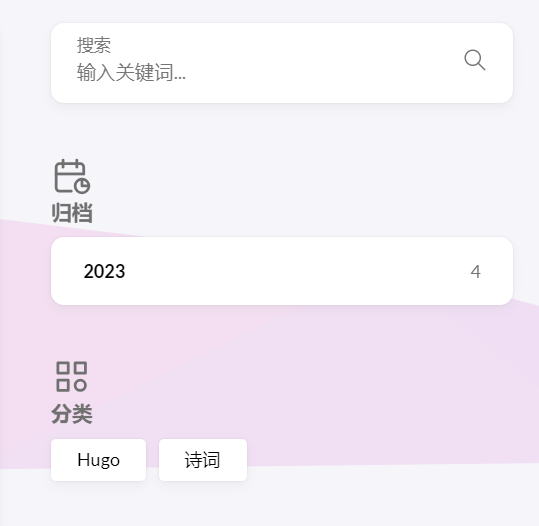
更改主页归档和分类图标及文章目录图标

只需要更改\assets\icons 文件夹类相对应的图标即可,注意下图中的箭头所指的svg文件,有两个相同英文文件名开头的.svg.中文标注的是原文件,没有标注的是更改了的文件,也就是说要改的是全英文名字的.svg.
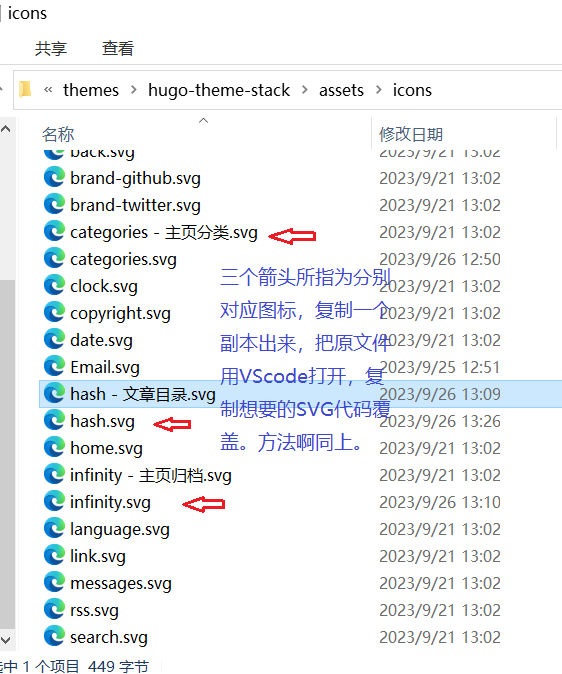
Alt text若图标颜色与主题的明暗主题不合,再将里面代码 stroke= 后面引号内的色号替换成 currentColor。

效果:
开启谷歌分析和搜索

谷歌分析:

登录官方网站网站地址,需要申请一个谷歌分析账号,或用你已经有的谷歌账号登录也可。

根据提示注册完毕后,到主页,右下角点管理-媒体资源下-数据流-点击网站数据流-复制衡量 ID
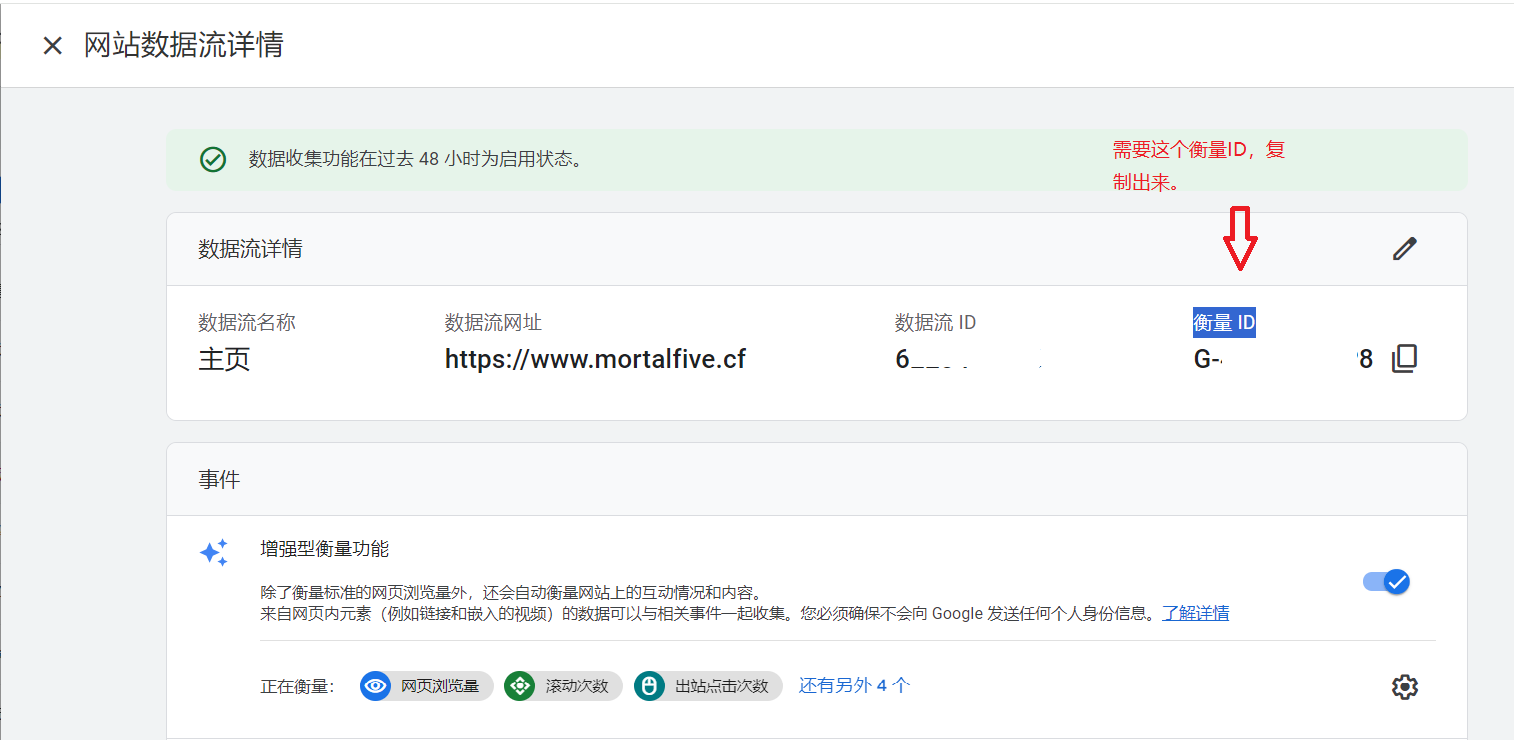
stack主题集成了对谷歌分析的支持,只需要把上面的衡量ID复制到(D:\mywebsite\myblog\config.yaml)打开config.yaml找到下面:

1
2
# GA Tracking ID
googleAnalytics:     # 填写入上面的衡量ID

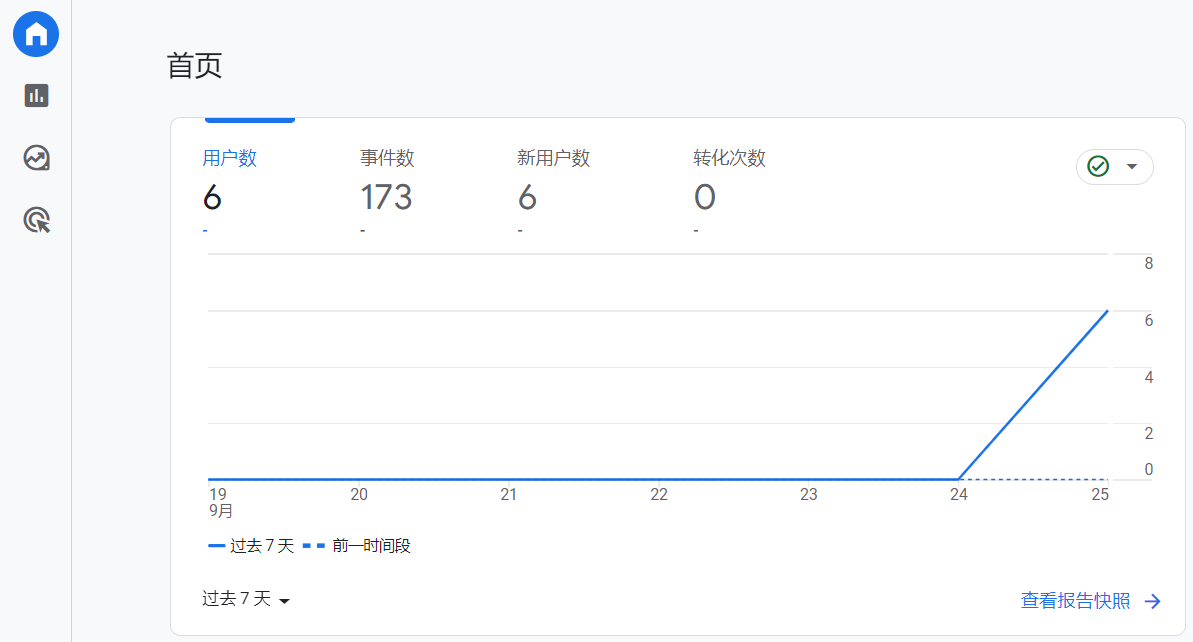
完成上面,就是下面效果:

谷歌搜索添加站点地图

选择网域或网站前缀及验证

站点地图是一个存储有站点网页信息的XML数据文件,通常命名为sitemap.xml,将它提交给搜索引擎,搜索引擎将可以获取我们网站的网页信息。

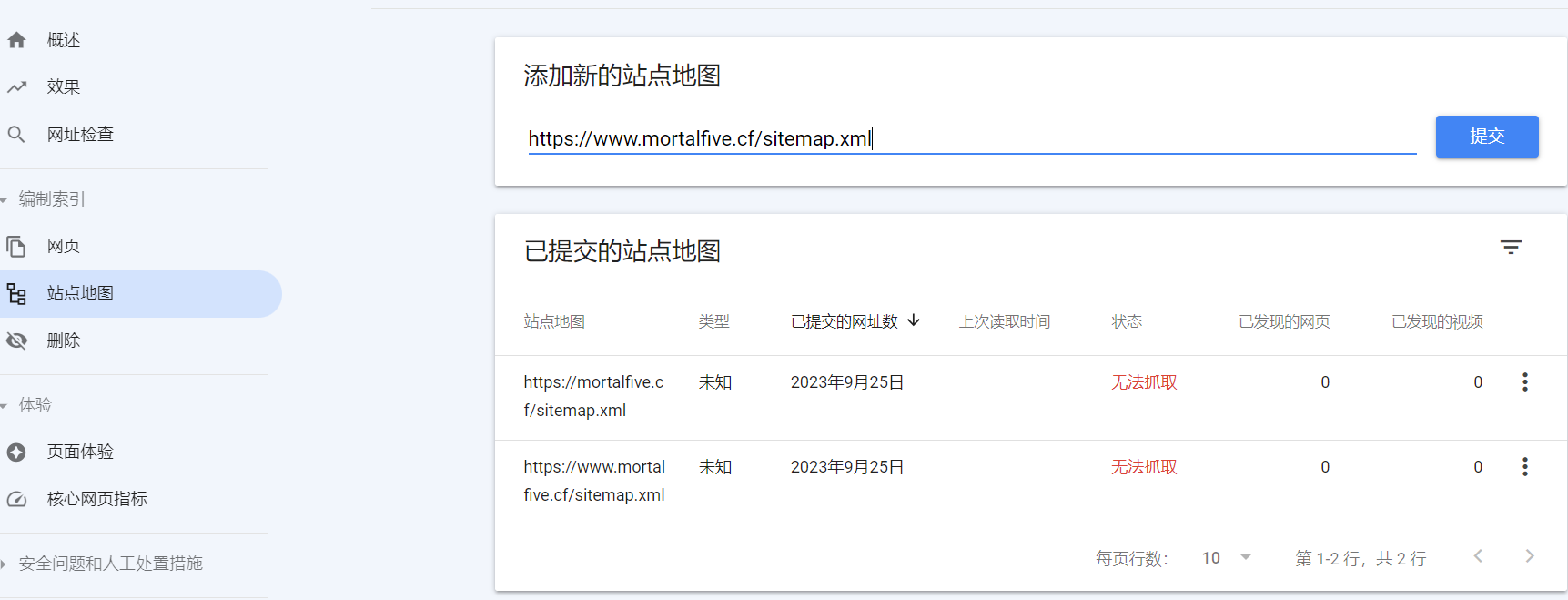
Hugo会在生成和部署网站时在public文件夹下自动生成sitemap.xml文件。 我们把站点地图提交到谷歌搜索,具体说明可参见谷歌站长页面的说明,下面是具体操作:

点击打开添加地址根据提示选择一个填入 验证最简单的三种:(其中网域只能用DNS进行验证,网址前缀可以多种验证)更详细的验证请看官网文档

(1)HTML 文件上传,相对简单,但您需要能够上传文件,并将其发布到您网站上的特定网址。下载HTML文件到public文件夹,再推送到网站)

(2)Google Analytics(分析)跟踪代码:如果网页已包含与您可以访问的 Google Analytics(分析)帐号相对应的 Google Analytics(分析)跟踪代码,使用此方法就很简单。如果网页不包含跟踪代码,您必须添加跟踪代码,这可能需要创建一个 Google Analytics(分析)帐号(如果您还未创建的话)。

(3)域名提供商:验证网域资源的唯一方法。如果您的域名提供商已在验证向导中列出,此过程就非常简单。网域资源非常有用,因为其中包含资源的所有协议 (http/https) 和子网域变体的数据。

提交站点地图

我的提交是这样的,不过失败了,我用的是网域方式: 尝试了很多方法,依然不行,我估计原因有二:一是域名是免费的,二是.xml文件不规范,懒得弄了。
下面是一位博主写的关于谷歌搜索优化的链接点击打开

添加打开网页时的加载进度条

代码增加到 /themes/hugo-theme-stack/layouts/partials/footer/custom.html

1
2
3
4
5
6
7
8
9
<script src="https://cdn.jsdelivr.net/gh/zhixuan2333/gh-blog@v0.1.0/js/nprogress.min.js" integrity="sha384-bHDlAEUFxsRI7JfULv3DTpL2IXbbgn4JHQJibgo5iiXSK6Iu8muwqHANhun74Cqg" crossorigin="anonymous"></script>
<link rel="stylesheet" href="https://cdn.jsdelivr.net/gh/zhixuan2333/gh-blog@v0.1.0/css/nprogress.css" integrity="sha384-KJyhr2syt5+4M9Pz5dipCvTrtvOmLk/olWVdfhAp858UCa64Ia5GFpTN7+G4BWpE" crossorigin="anonymous" />
<script>
    NProgress.start();
    document.addEventListener("readystatechange", () => {
        if (document.readyState === "interactive") NProgress.inc(0.8);
        if (document.readyState === "complete") NProgress.done();
    });
</script>

改变文章内代码块样式为MACOS样式

(1)在位置D:\mywebsite\myblog\static\下创建一个img文件夹,呈现:(D:\mywebsite\myblog\static\img),复制一个.svg到img文件夹,并将其改名为code-header.svg,复制以下代码覆盖code-header.svg的所有内容:

1
2
3
4
5
<svg xmlns="http://www.w3.org/2000/svg" version="1.1"  x="0px" y="0px" width="450px" height="130px">
    <ellipse cx="65" cy="65" rx="50" ry="52" stroke="rgb(220,60,54)" stroke-width="2" fill="rgb(237,108,96)"/>
    <ellipse cx="225" cy="65" rx="50" ry="52"  stroke="rgb(218,151,33)" stroke-width="2" fill="rgb(247,193,81)"/>
    <ellipse cx="385" cy="65" rx="50" ry="52"  stroke="rgb(27,161,37)" stroke-width="2" fill="rgb(100,200,86)"/>
</svg>

(2)增加以下代码到\themes\hugo-theme-stack\assets\scss\custom.scss

 1
 2
 3
 4
 5
 6
 7
 8
 9
10
11
12
13
14
15
16
17
//  ~\themes\hugo-theme-stack\assets\scss\custom.scss

//----------------------------------------------------------
//为代码块顶部添加macos样式
.article-content {
  .highlight:before {
    content: "";
    display: block;
    background: url(/img/code-header.svg);
    height: 32px;
    width: 100%;
    background-size: 57px;
    background-repeat: no-repeat;
    margin-bottom: 5px;
    background-position: -1px 2px;
  }
}

固定文章内代码块的高度

高度限制在 26em,并隐藏滚动条.增加代码到 /themes/hugo-theme-stack/assets/scss/partials/article.scss

 1
 2
 3
 4
 5
 6
 7
 8
 9
10
11
12
13
14
15
16
17
18
19
20
21
/* 固定块高度 高度限制在 26em,并隐藏滚动条*/
//* /themes/hugo-theme-stack/assets/scss/partials/article.scss*//

    .article-content {
        .highlight {
            padding: var(--card-padding);
            pre {
                margin: initial;
                padding: var(--card-padding);
                margin: 0;
                width: auto;
                max-height: 26em;
                scrollbar-width: none;
                /* Firefox */
                &::-webkit-scrollbar {
                    display: none;
                    /* Chrome Safari */
                }
            }
        }
    }

给网页左下角加一只小黑猫

将下面代码添加到\themes\hugo-theme-stack\layouts\ _default\baseof.html中的 {{ partial “footer/include.html” . }}以下:

 1
 2
 3
 4
 5
 6
 7
 8
 9
10
11
12
13
14
15
16
17
18
19
20
21
22
23
24
25
26
27
28
29
30
31
32
33
34
    <script src="https://l2dwidget.js.org/lib/L2Dwidget.min.js"></script>
    <script>
    // 不同人物形象
    // 黑猫猫
    hijiki = "https://unpkg.com/live2d-widget-model-hijiki@1.0.5/assets/hijiki.model.json"
    // 白猫猫
    tororo = "https://unpkg.com/live2d-widget-model-tororo@1.0.5/assets/tororo.model.json"
    // 狗狗
    wanko = "https://unpkg.com/live2d-widget-model-wanko@1.0.5/assets/wanko.model.json"
        L2Dwidget.init({
            "model": {
                // 在这里使用上面的人物名称替换可以切换人物形象
                jsonPath: hijiki,
                "scale": 1
            },
            "display": {
                "superSample": 9,     // 超采样等级,相当于清晰度,数值越高越清晰
                "position": "left", //切换显示位置的左右
                "width": 174,
                "height": 232,
                "hOffset": 116, // canvas水平偏移,正方向为右
                "vOffset": -32 // canvas垂直偏移
            },
            "mobile": {
                "show": true, //在手机端显示
                "scale": 1, // 移动设备上的缩放
                "motion": true, // 移动设备是否开启重力感应
            },
            "react": {
                "opacityDefault": 1, // 默认透明度
                "opacityOnHover": 1 // 鼠标移上透明度
            }
        });
    </script>

加蜘蛛网汇聚鼠标的蜘蛛网

添加到\themes\hugo-theme-stack\layouts_default\baseof.html 文件;(代码添加到{{ partial “footer/include.html” . }}下面);后面的3个数字可RGB调色(i, “color”, “135,206,235”)

 1
 2
 3
 4
 5
 6
 7
 8
 9
10
11
12
13
14
15
16
17
18
19
20
21
22
23
24
25
26
27
28
29
30
31
32
33
34
35
36
37
38
39
40
41
42
43
44
45
46
47
<script>
        // 蜘蛛网特效
        // \themes\hugo-theme-stack\layouts\_default\baseof.html(添加到{{ partial "footer/include.html" . }}下面)
        !function () {
            function n(n, e, t) {
                return n.getAttribute(e) || t
            }
         
            function e(n) {
                return document.getElementsByTagName(n)
            }
         
            function t() {
                var t = e("script"), o = t.length, i = t[o - 1];
                return {l: o, z: n(i, "zIndex", -1), o: n(i, "opacity", .5), c: n(i, "color", "135,206,235"), n: n(i, "count", 99)}
            }
         
            function o() {
                a = m.width = window.innerWidth || document.documentElement.clientWidth || document.body.clientWidth, c = m.height = window.innerHeight || document.documentElement.clientHeight || document.body.clientHeight
            }
         
            function i() {
                r.clearRect(0, 0, a, c);
                var n, e, t, o, m, l;
                s.forEach(function (i, x) {
                    for (i.x += i.xa, i.y += i.ya, i.xa *= i.x > a || i.x < 0 ? -1 : 1, i.ya *= i.y > c || i.y < 0 ? -1 : 1, r.fillRect(i.x - .5, i.y - .5, 1, 1), e = x + 1; e < u.length; e++) n = u[e], null !== n.x && null !== n.y && (o = i.x - n.x, m = i.y - n.y, l = o * o + m * m, l < n.max && (n === y && l >= n.max / 2 && (i.x -= .03 * o, i.y -= .03 * m), t = (n.max - l) / n.max, r.beginPath(), r.lineWidth = t / 2, r.strokeStyle = "rgba(" + d.c + "," + (t + .2) + ")", r.moveTo(i.x, i.y), r.lineTo(n.x, n.y), r.stroke()))
                }), x(i)
            }
         
            var a, c, u, m = document.createElement("canvas"), d = t(), l = "c_n" + d.l, r = m.getContext("2d"),
                x = window.requestAnimationFrame || window.webkitRequestAnimationFrame || window.mozRequestAnimationFrame || window.oRequestAnimationFrame || window.msRequestAnimationFrame || function (n) {
                    window.setTimeout(n, 1e3 / 45)
                }, w = Math.random, y = {x: null, y: null, max: 2e4};
            m.id = l, m.style.cssText = "position:fixed;top:0;left:0;z-index:" + d.z + ";opacity:" + d.o, e("body")[0].appendChild(m), o(), window.onresize = o, window.onmousemove = function (n) {
                n = n || window.event, y.x = n.clientX, y.y = n.clientY
            }, window.onmouseout = function () {
                y.x = null, y.y = null
            };
            for (var s = [], f = 0; d.n > f; f++) {
                var h = w() * a, g = w() * c, v = 2 * w() - 1, p = 2 * w() - 1;
                s.push({x: h, y: g, xa: v, ya: p, max: 6e3})
            }
            u = s.concat([y]), setTimeout(function () {
                i()
            }, 100)
        }();
        </script>

致谢

感谢来自互联网大神们的神奇代码

comments powered by Disqus
Built with Hugo
主题 StackJimmy 设计